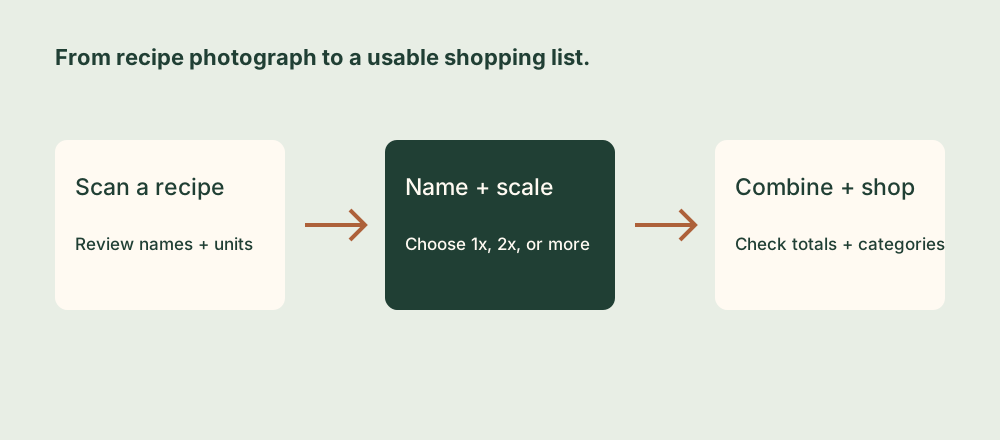
1. Photograph the ingredients clearly
A recipe-to-shopping-list workflow starts with a readable ingredient list. Place the page in even light, keep the phone parallel to it, and include the complete ingredient names and measurements. Avoid photographing a fold, a strong shadow, or a cropped-off fraction.
In MyGroceryList, open Scan a Recipe from the empty-list screen or the list’s menu. Choose Take Photo or Choose Photo. You can also start the scanner with Siri by saying “Scan a recipe in MyGroceryList,” then choose the photo source yourself.
Printed English recipes are a good starting point. The app supports ingredient columns and wrapped lines, but a clean capture is still easier to review. Include the ingredients section rather than an entire spread filled with instructions, captions, and advertisements.
2. Review the text before adding anything
On Review Ingredients, check each line against the source. Pay particular attention to fractions, units, ingredient varieties, and package sizes. “½ cup” and “2 cups” produce very different shopping totals; “almond flour” and “all-purpose flour” should not be treated as the same ingredient.
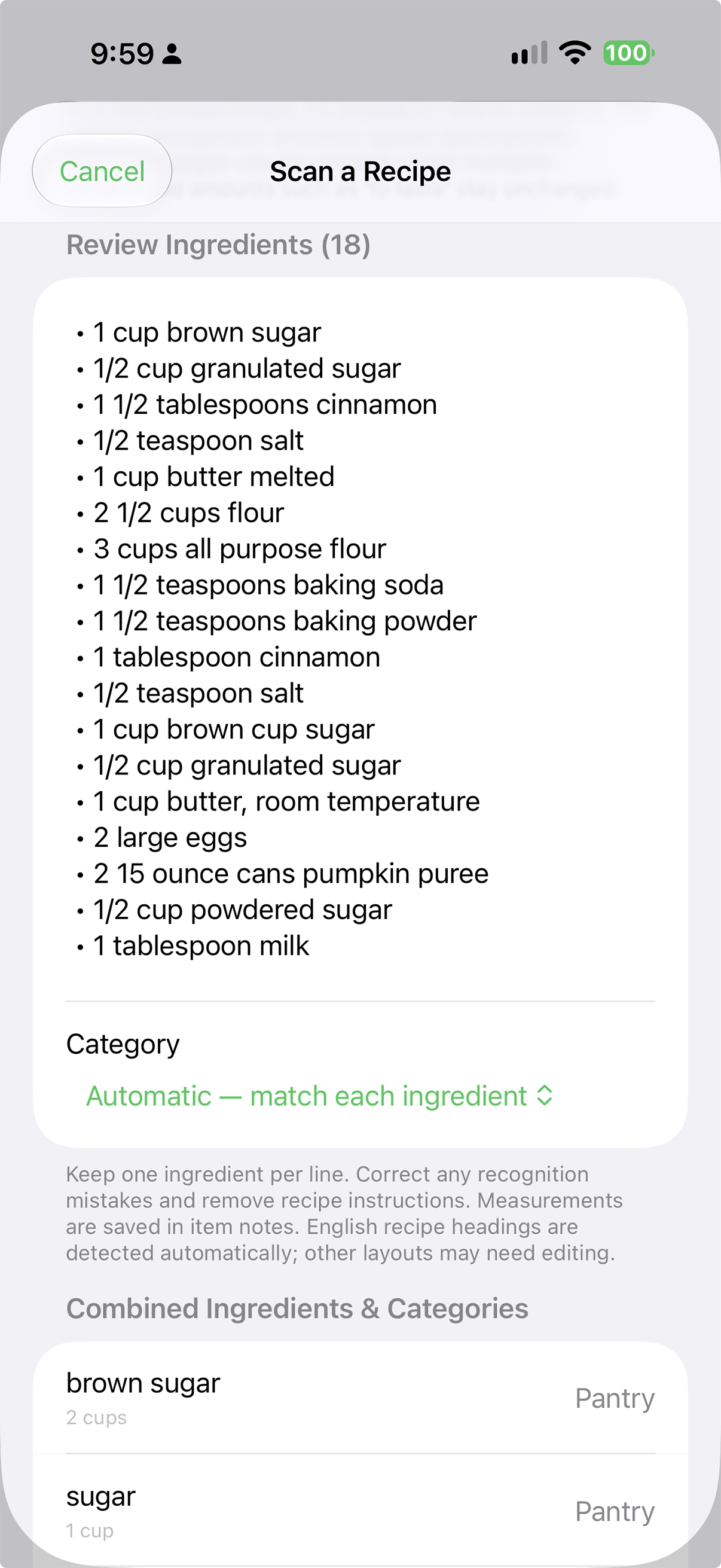
- Keep one ingredient per line. Join a wrapped ingredient name when needed and remove cooking directions that were mistaken for ingredients.
- Keep the complete name. Words such as shredded, unsalted, or a particular flour variety can affect what you buy.
- Check count and package size separately. Two 15-ounce cans means two cans of that size, not one 15-ounce purchase.
- Remove accidental duplicate lines. A repeated scan or duplicated text will add more groceries than the recipe needs.
Under Recipe Label, choose a new recipe and give it a short, recognizable name. You can type or use the microphone to dictate the name. The label helps you see which recipe contributes to a shared ingredient later.
Choose a recipe amount and review the combined ingredient preview. Automatic categories use existing matches when available; check the assignments before adding. Unmatched ingredients can go to Other, where you can organize them afterward.
3. Check the multiplier with a small example
Here is a short input exercise, not a complete recipe. Enter these four lines under a new recipe label such as “Weekend Bake”:
1/2 cup all-purpose flour
2 15 ounce cans pumpkin puree
2 large eggs
Choose 2x before adding. Matching flour entries combine, the number of cans doubles while each can’s size stays the same, and the egg count doubles.
| Ingredient | Original amount | At 2x |
|---|---|---|
| Flour, including the matching all-purpose entry | 2½ cups total | 5 cups |
| Pumpkin puree | 2 cans, 15 oz each | 4 cans, 15 oz each |
| Eggs | 2 | 4 |
Amounts such as “to taste” do not become a precise measurement when you scale them. Weight and volume may remain as separate amounts when the app cannot combine them. Do not invent a weight-to-volume conversion for an ingredient just to make the list appear shorter.
4. Add another recipe without counting the first twice
Import the next recipe under its own label. Matching ingredients can share one grocery row while retaining their recipe contributions. For example, add a second recipe with 1 cup flour at 1x: the flour total becomes 6 cups, made up of 5 cups for Weekend Bake and 1 cup for the second recipe.
Tap an ingredient to inspect its recipe requirements. If you later change Weekend Bake from 2x to 3x using Recipe Amounts in the list menu, its flour contribution becomes 7½ cups. The other recipe remains at 1 cup, giving 8½ cups total.
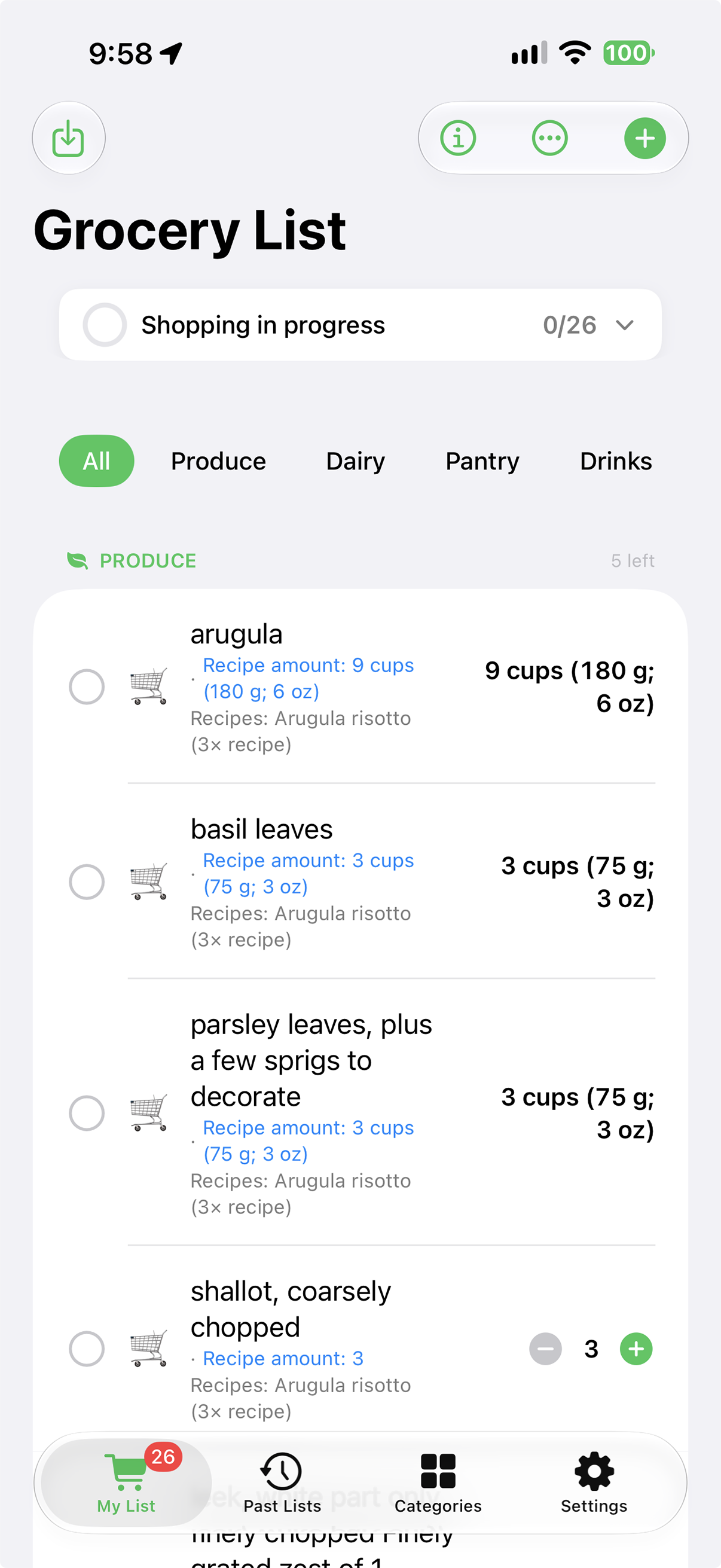
Reimporting the same ingredient page increases its amounts; it is not a refresh of the old scan. For a genuine second page of a recipe, select its existing recipe label. To change how much you are making, change the named recipe’s amount instead of rescanning the first page.
Earlier scans without recipe labels may appear as recipe unknown and cannot be scaled as a named recipe. Use the attribution and totals available rather than assuming the app can reconstruct a recipe name that was never saved.
5. Turn the combined ingredients into a useful shopping trip
Check your cupboards before you buy. Keep recipe requirements visible while deciding what you actually need to purchase, and review the total amount against the package sizes sold at your store. A recipe requirement and a whole-package shopping decision are related but different.
Add everyday extras by typing or voice, arrange categories to suit your store, and filter or search the list as you shop. Check items off as you find them and review the progress indicator before leaving. Past Lists lets you revisit saved shopping lists for a future trip.
For another device, use iCloud with the same Apple ID and allow time for changes to sync over an internet connection. Product barcode lookups also need connectivity to retrieve available Open Food Facts data. The basic ingredient list remains useful even when a product lookup has no result. For help with categories, history, or scanning controls, see MyGroceryList support.